
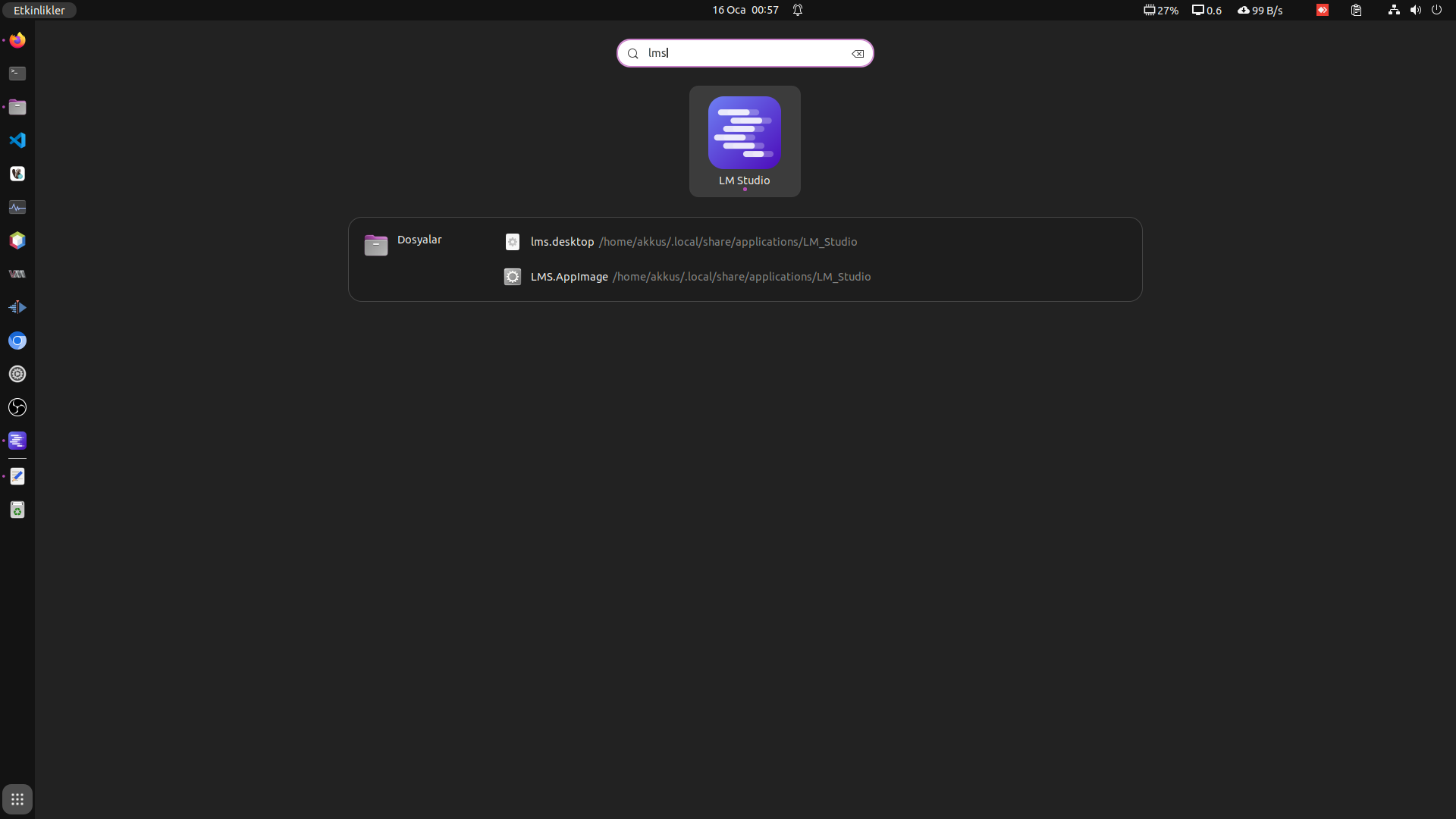
With the influence of the free software philosophy, Linux can enable you to install applications in many different ways. The most well-known of these are the package manager, application stores, Flatpak packages and AppImage packages. Each has different advantages and disadvantages. For example, although AppImage can work in almost all distributions, unless you install it with a separate launcher, it can neither be added to favorites in the application tray nor found in application search areas such as dash. It is kept in a file and when you want to access it, you have to go to the relevant file and open the application. In this article, we share with you what needs to be done to add the AppImage file to the application tray and ensure its availability in tools such as Dash.
In our article, we will take the LM Studio application as an example. LM Studio is a text-based artificial intelligence application that can work offline. We will have an article about it, but for now, let's examine how we can make this application in AppImage format look like a natural application.
.desktop file supports an application in Linux desktop environments.
It is a configuration file used for startup. This file
the application's name, icon, path to its executable, and
Includes many other features. We will use this file to introduce AppImage applications to our operating system. First, let's name this file to remind us of our application name. In this example, we create a file named lms.desktop. This is the file we created /usr/share/applications or ~/.local/ We need to put it in one of the share/applications directories.
You can follow these steps to create a .desktop file:
gedit new_application.desktop command.
[Desktop Entry]
Type=Application
Name=Application Name
Exec=/path/to/application
Icon=/path/to/icon.png
Type: Type of application. We can give this value as Application.Name: The name of the application. This value is the name that the application will appear in the application tray and Dash. A name with spaces can be given.Exec: The full path to the application's executable file. The application can be located in any directory.Icon: The full path to the application's icon. It must be in PNG format/usr/share/applications< Move it to /span> or ~/.local/share/applications/ directory.Let's reinforce the basic information with an example. First of all, we moved the LM Studio (LMS.AppImage) application to a directory of our choice. We also put the icon file of the application into the same directory. We created the .desktop file of the LM Studio application as follows and moved it to the ~/.local/share/applications/ directory. We restarted our computer.
[Desktop Entry]
Type=Application
Name=LM Studio
Icon=/path/to/LM_Studio/icon.png
Exec=/path/to/LM_Studio/LMS.AppImage
Categories=Software
Terminal=false
StartupWMClass=LM Studio
Categories: You can define any category you want. For example: Office, Software etc.Terminal: Is it in the application's terminal window or in the graphical interface?
Indicates that it will be run. The value "false" means that the application is running in the terminal.
Indicates that it will not be run.StartupWMClass: Allows the application to be associated with the icon in the tray while it is running. This value must be the same as Name. If this value is not given, the application will be shown in the tray separately from the icon. To find AppImage applications on Dash you can follow these steps:
To show it in the application tray, you can follow these steps:


Effective Software Testing Strategies for Modern Development In the rapidly evolving landscape of te...
Devamını oku →
31 Mart 2024 tarihinde yapılacak olan yerel seçimlere, seçim yazılımımızla biz de hazırız.Seçi...
Devamını oku →